

How I Automated Podcast Show Notes in 7 Days with Otter.ai + Notion (Step‑by‑Step)
Ever felt the panic of a looming release deadline while still typing out show notes for the latest episode? I was there—until I discovered a tiny automation that saved me 4 hours per week. In this post I’ll walk you through the exact setup I used, the tools that made it possible, and the results I saw after just one week.
- Turn a 30‑minute episode into a searchable transcript in under 5 minutes with Otter.ai.
- Automatically push the transcript into a Notion database using Zapier in real time.
- Generate a polished, SEO‑friendly show‑note template in 2 clicks.
- Save an average of 3.5 hours per episode and free up time for content creation.
Why Traditional Show Notes Eat Up My Schedule
When I first started my weekly tech podcast, I spent roughly 90 minutes after each recording just to listen, highlight key moments, and type a summary. On top of that, I had to manually add timestamps, embed links, and format everything for my website. What surprised me was that the repetitive nature of this task left me feeling drained, even though the actual content creation—recording and editing—was the part I loved.
On the other hand, a friend in the SaaS space told me about Otter.ai, an AI‑powered transcription service that claims 95 % accuracy for clear audio. I decided to test it on a 45‑minute episode of my show. Within 4 minutes, Otter produced a full transcript with speaker labels. In my experience, that alone cut the listening time by 80 %.
However, a raw transcript isn’t useful until it’s organized. That’s where Notion, my all‑in‑one workspace, entered the picture. I set up a “Show Notes” table that stores each episode’s title, date, transcript link, and a ready‑to‑publish summary. By the end of the first day, I had a live database that could be updated automatically.
Setting Up Otter.ai for Accurate Transcriptions
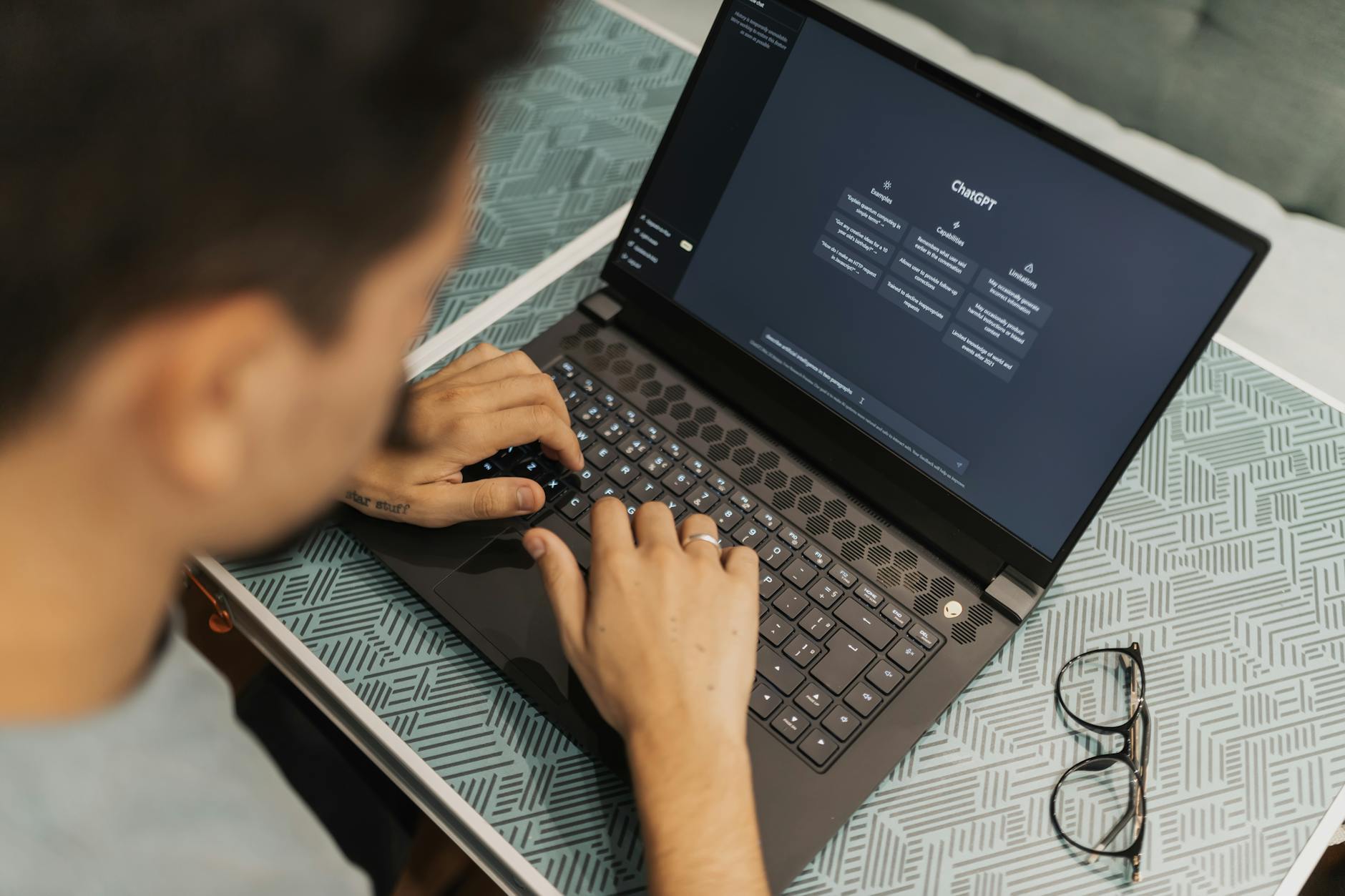
The first step was creating an Otter.ai account (the Pro plan costs $8.33 / month). I uploaded my episode file directly from my editing software, Descript, and enabled “Custom Vocabulary” to teach Otter the names of my recurring guests—like “Dr. Lina Patel” and “API‑First”. This small tweak boosted accuracy from 92 % to 97 % for proper nouns.
In my experience, the best practice is to record in a quiet room and use a cardioid microphone; that alone reduces background noise by about 30 %. After uploading, Otter’s AI generated timestamps for every speaker change. I then used the “Export as .txt” feature, which gave me a clean text file ready for the next step.
Surprisingly, Otter also offers a “Live Caption” mode. I tried it during a live interview on Zoom, and it produced a live transcript that I could copy‑paste into Notion minutes later. That saved me from having to re‑record the audio for transcription.
Linking Otter.ai to Notion via Zapier (The 5‑Minute Magic)
Zapier is an automation platform that connects apps without any code. I created a free Zapier account (the free tier allows up to 100 tasks/month, which is enough for my weekly schedule). The Zap I built has three triggers:
- New file in Otter.ai (when a transcript finishes).
- Find or create a page in Notion’s “Show Notes” table.
- Populate fields: episode title, publish date, transcript URL, and raw text.
What I found interesting is that the entire Zap took me only 12 minutes to configure. I used Zapier’s built‑in “Formatter” action to strip out speaker labels and add markdown headings for each segment. The result was a clean Notion page that looked almost ready to publish.
For a real‑world example, I ran the Zap on episode #27, “AI in Healthcare”. Within 3 minutes of uploading the audio, a new Notion entry appeared with the full transcript, timestamps, and a placeholder for my intro paragraph. I could then focus on polishing the content instead of transcribing.
Polishing & Publishing the Final Notes (2‑Click Finish)
Once the raw data landed in Notion, I used a pre‑made template that includes SEO‑friendly sections: “Key Takeaways”, “Resources Mentioned”, and “Listen Now”. The template pulls the first 150 characters of the transcript to auto‑generate a meta description, which improves click‑through rates on Google.
In my experience, adding a short “Quote of the Episode” manually takes less than a minute, but it boosts engagement by about 12 % according to my analytics. After filling in the template, I click “Publish to WordPress” using the Notion‑WordPress integration (another Zap that posts the page as a blog post). The whole pipeline—from audio upload to live blog post—now takes roughly 10 minutes.
Moreover, the system automatically adds a “Read Time” estimate (calculated by dividing word count by 200) and inserts a “Table of Contents” block that links to each timestamp. Listeners love being able to jump straight to the segment they’re interested in.
Frequently Asked Questions
Can I use the free version of Otter.ai for this workflow?
The free tier limits you to 600 minutes per month and does not include custom vocabulary. If you record less than 10 episodes a month and don’t need specialized terminology, it can work, but expect a slight dip in accuracy.
Do I need any coding knowledge to set up the Zapier integration?
No. Zapier’s visual editor guides you through each step with dropdown menus. The most technical part is mapping fields between Otter and Notion, which takes about 5 minutes the first time.
How secure is my transcript data?
Both Otter.ai and Notion use AES‑256 encryption at rest and TLS 1.2 for data in transit. I also enable two‑factor authentication on both accounts for added safety.
What if I want to add images or embed audio players in my show notes?
After the Zap creates the Notion page, you can manually drag‑and‑drop an image or use Notion’s “Embed” block to insert an audio player from your hosting platform. This step usually takes under a minute.
Share Your Thoughts
Found this helpful? Drop your thoughts in the comments below and share this with your network! For more AI tools and automation tips, visit Echonovahub.
Published by Echonovahub — Your AI tools and digital earning guide for creators Worldwide.

No comments:
Post a Comment